How to watch multiple live streams at once
Stream Mix puts Twitch, YouTube, and Kick broadcasts in one draggable browser workspace. No account or download is required.
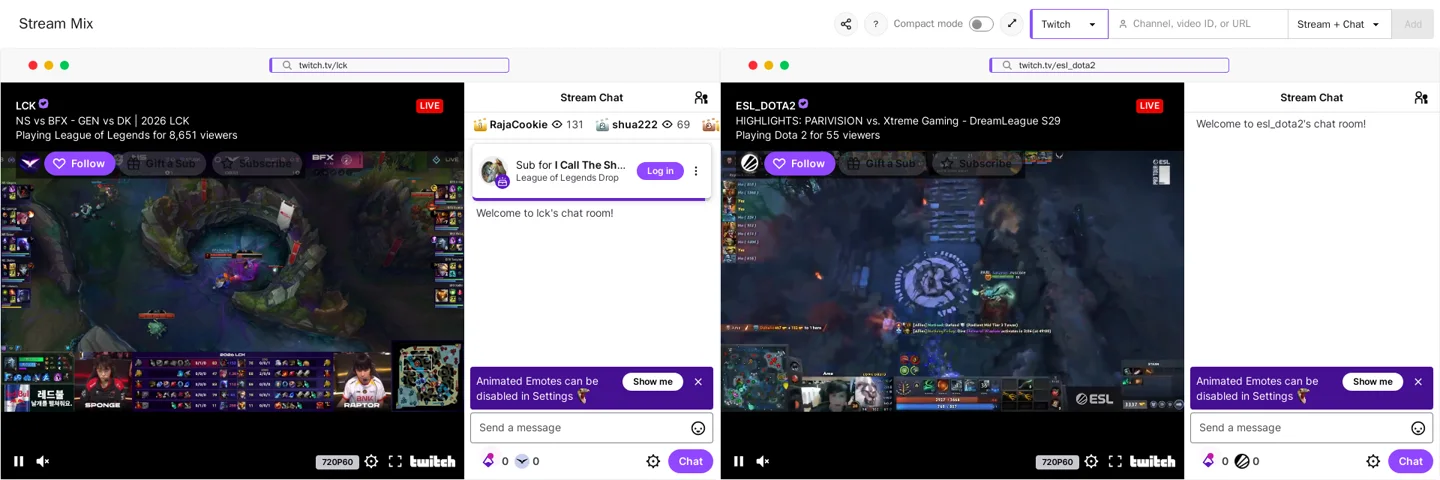
A real Stream Mix workspace
This workspace follows two Twitch broadcasts at the same time. Each panel keeps its own player and chat. The larger window is the main view, while the second window keeps another point of view visible.
1. Add your streams
- Paste a URL such as
twitch.tv/channel,youtube.com/watch?v=VIDEO_ID, orkick.com/channel. Stream Mix detects the platform automatically. - Choose Stream + Chat, Stream, or Chat and select Add.
- Repeat for every perspective you want to follow.
You can also select a platform manually and enter a Twitch or Kick channel name, or a YouTube video ID.
2. Choose what each window shows
- Stream + Chat keeps video and conversation together.
- Stream gives the full panel to video.
- Chat shows only the platform’s conversation.
3. Arrange and save the workspace
Drag windows by their headers and resize them from either lower corner. Positions are saved automatically in your browser. Minimize panels to the bottom shelf, or enable Compact mode to hide the site and window headers.
The share button copies a link containing the streams, display modes, and grid positions. Opening it replaces an existing workspace only after confirmation.
Example: follow a tournament
- Make the official broadcast the largest Stream + Chat panel.
- Add one or two player views as smaller Stream panels.
- Use a Chat panel for a conversation that you want to follow closely.
- Minimize a view between matches. Restore it from the bottom shelf when it becomes useful again.
This keeps the main action clear without losing the other points of view. Stream Mix saves the layout in the current browser as you change it.
Playback and platform help
Several video players can use significant bandwidth and processing power. If playback stutters, lower the quality of secondary streams, switch some panels to Chat, or minimize streams you do not need continuously.
- Watch multiple Twitch streams for channel URLs and Twitch embed troubleshooting.
- Watch multiple YouTube live streams for supported URLs and live chat availability.
- Watch multiple Kick streams for channel inputs and Kick player behavior.
The FAQ covers saved layouts, privacy, sharing, and common playback issues.